
0.0 Executive Summary
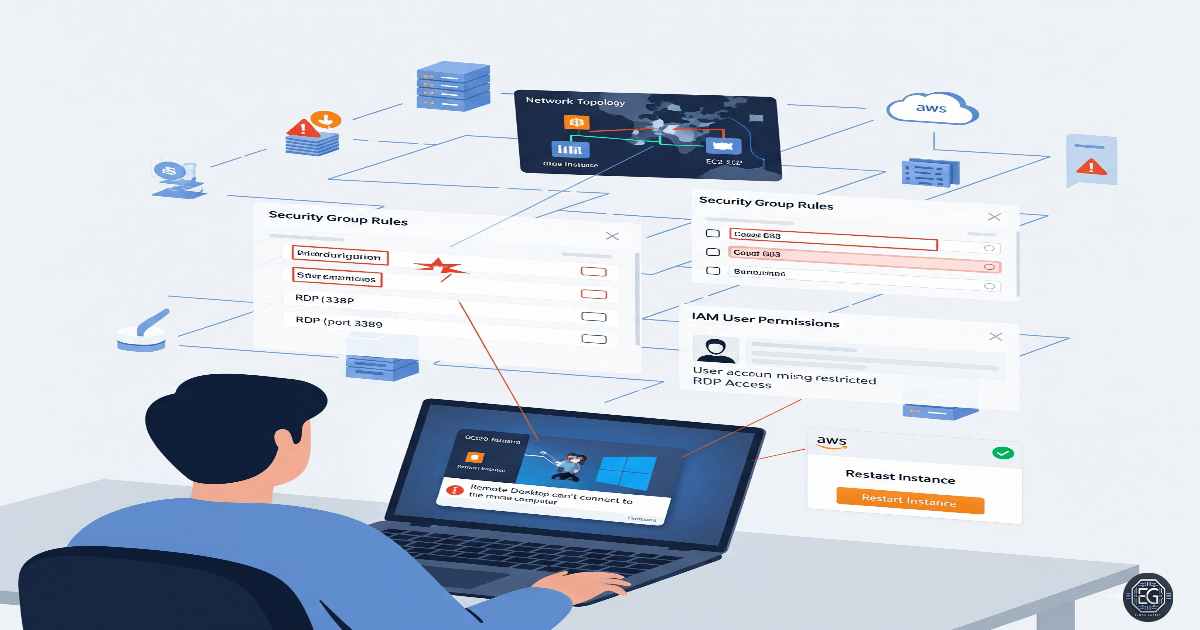
This report explains how Remote Desktop Protocol (RDP) access was configured and fixed on a Windows 10 virtual machine hosted in AWS.
The main goal was to reduce the risk of being locked out of the system and to prevent service downtime. This was done by using local account management and Group Policy checks to control who can connect remotely.
The final result improved system security by replacing the default setup, where only the original user could connect. The updated configuration allows specific authorized users to access the system through RDP in a controlled and reliable way.
1.0 RDP Troubleshooting for AWS Users
1.1 Project Description
The goal of this task was to set up and verify proper RDP access so that users could connect without issues while preventing unauthorized access.
This was done using an AWS-hosted virtual machine.
The main actions included:
- Allowing only authorized users to log in through RDP
- Ensuring users were placed in the correct local groups
- Confirming that system settings and firewall rules allowed remote connections
- Documenting the setup so it can be reused on other instances
These steps help protect remote access and prevent misconfiguration that could block access to the system.
1.2 Technical Task / Troubleshooting Process
The process focused on finding issues in the default RDP configuration and applying the correct settings to fix them.
Key Actions & Observations
- Reviewed the default system setup and identified that user group membership was missing or incomplete
- Used the following tools:
- Local Users and Groups (lusrmgr.msc)
- Local Group Policy Editor (gpedit.msc)
- Updated access control by:
- Adding the user to the “Remote Desktop Users” group
- Checking firewall rules to allow RDP traffic
- Verifying that Remote Desktop Services were running
- Confirmed supporting components:
- Remote Desktop Services
- Windows Defender Firewall
- Recorded all steps to allow repeatable deployment on new AWS instances
Root Cause:
By default, AWS Windows instances may only allow one initial user to connect through RDP. Additional users cannot connect unless they are added to the correct group. This issue was fixed by explicitly adding the required users to the “Remote Desktop Users” group and confirming all supporting services were active.
1.3 Resolution and Validation
The configuration was applied and tested to confirm that remote access worked correctly.
| Parameter | Configuration Value |
|---|---|
| Management Tool | CLI / Computer Management |
| Control State | Enabled |
| Security Mode | Restricted Group Membership |
| Scope | AWS-hosted Windows 10 VM |
Validation Steps
-
Attempted to log in using the newly added user account through RDP
-
Verified that the remote desktop session connected successfully
-
Confirmed the correct user identity using the
whoamicommand -
Tested system stability by running normal applications during the session
-
Ensured that permissions matched the expected access level
2.0 CONCLUSION
2.1 Key Takeaways
- Default RDP settings may limit access to only one user
- Adding users to the correct local group is required for RDP access
- Group Policy and firewall settings must align for remote access to work
- Testing is needed to confirm that configuration changes are successful
- Proper setup helps avoid lockouts and ensures reliable remote administration
2.2 Security Implications and Recommendations
Risk: Loss of Administrative Access
Incorrect RDP settings or firewall rules can prevent administrators from accessing the system.
Mitigation: Keep clear documentation of all RDP-related configurations and user group assignments.
Risk: Incorrect Network Configuration Misconfigured firewall rules or cloud network settings can block access to the system.
Mitigation: Restrict RDP access to trusted IP addresses and follow standard network segmentation practices.
Best Practices
- Only add necessary users to the Remote Desktop Users group
- Use consistent configuration settings across all systems
- Regularly review access permissions and firewall rules
- Document all changes for troubleshooting and audits
Framework Alignment
- Supports secure system configuration and access control principles
- Aligns with NIST guidance for identity and access management
- Reinforces proper troubleshooting methods and controlled system administration in cloud environments