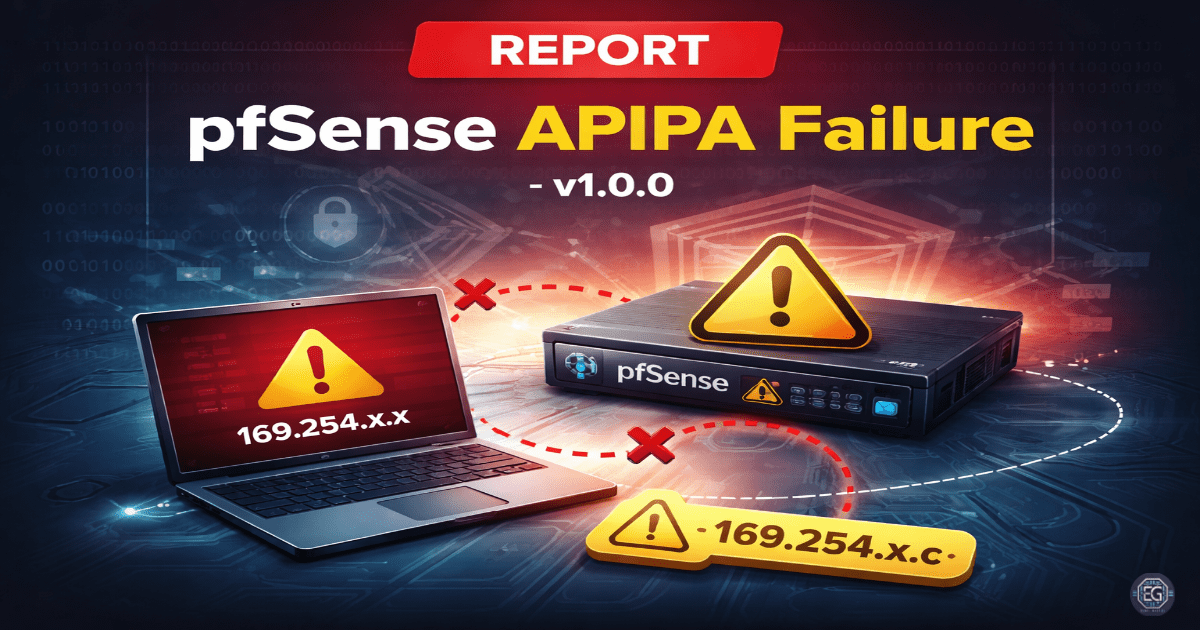
TL;DR
- pfSense WebGUI became inaccessible due to incorrect client-side IP configuration
- Windows host fell back to APIPA (169.254.x.x), breaking management access
- Restoring a static IP and validating connectivity resolved the issue
Incident Overview
Problem
- pfSense WebGUI experienced a management interface timeout
- Resulted in loss of administrative access from the Windows management host
Environment
- Systems: pfSense 2.7.2, Windows 10 Pro
- Network Setup: VirtualBox Internal Network (LabNet)
- Key Services: Nginx, PHP-FPM, Packet Filter (pf)
Actions
- Identified: Windows host using APIPA (169.254.x.x)
- Analyzed: Checked HTTPS service and firewall rules (`sockstat`, `pfctl`)
- Remediated: Restored static IP (172.16.0.10/24) via PowerShell
- Tested: Verified Layer 4 connectivity (`Test-NetConnection`, port 8443)
- Validated: Confirmed WebGUI and SSH access
Result
- Administrative access to pfSense restored
- WebGUI accessible over hardened management port (8443)
- Connectivity verified through browser access and PowerShell testing
Key Skills Demonstrated
- Network Troubleshooting (Layer 3 vs Layer 4)
- Firewall Administration (pfSense / pf)
- PowerShell Network Configuration
- System Hardening and Interface Management
Key Takeaways
- APIPA addressing indicates DHCP failure or misconfiguration on the client
- ICMP success does not guarantee application-layer connectivity
- Client-side misconfiguration can block administrative access even when services are operational
Why It Matters
- Client misconfigurations can mimic server or firewall failures
- Proper IP management is critical for secure administrative access
- Multi-layer validation prevents incorrect troubleshooting conclusions
How It Maps to the Job / Framework
- Network Troubleshooting → Layer 3 vs Layer 4 validation
- Firewall Administration → pfSense rule verification
- System Administration → Windows network configuration
- Defensive Security Operations → Secure management access control