
0.0 Executive Summary
This report details the hardening of Microsoft Edge on a Windows workstation using Local Group Policy Objects (GPOs). By disabling high-risk legacy features like Adobe Flash, enforcing Windows Defender SmartScreen, and restricting access to internal configuration pages, the attack surface of the browser was significantly reduced.
The project successfully implemented a security baseline that prevents the execution of malicious downloads and restricts user-side modifications to security settings, ensuring a standardized and protected web environment.
1.0 Microsoft Edge Hardening via Local GPO
1.1 Project Description
The objective of this project was to apply industry-standard best practices to secure Microsoft Edge against common web-based vulnerabilities and social engineering attacks. Browsers often serve as the primary entry point for malware; therefore, this task focused on removing unnecessary features (Developer Tools, Password Manager) and enforcing active defense mechanisms (SmartScreen, Pop-up Blockers).
The goal was to establish a “locked-down” browser state that prioritizes organizational security over permissive user features.
1.2 Technical Task / Troubleshooting Process
The hardening process involved navigating the Administrative Templates specific to Microsoft Edge within the Local Group Policy Editor to enforce strict functional constraints.
Key Actions & Observations
-
Feature Deprecation: Disabled Adobe Flash and Developer Tools to mitigate risks associated with legacy exploits and manual DOM manipulation by unauthorized actors.
-
Privacy & Data Protection: Enabled Do Not Track and disabled the integrated Password Manager to encourage the use of dedicated, secure credential management solutions.
-
Attack Surface Reduction: Restricted access to the
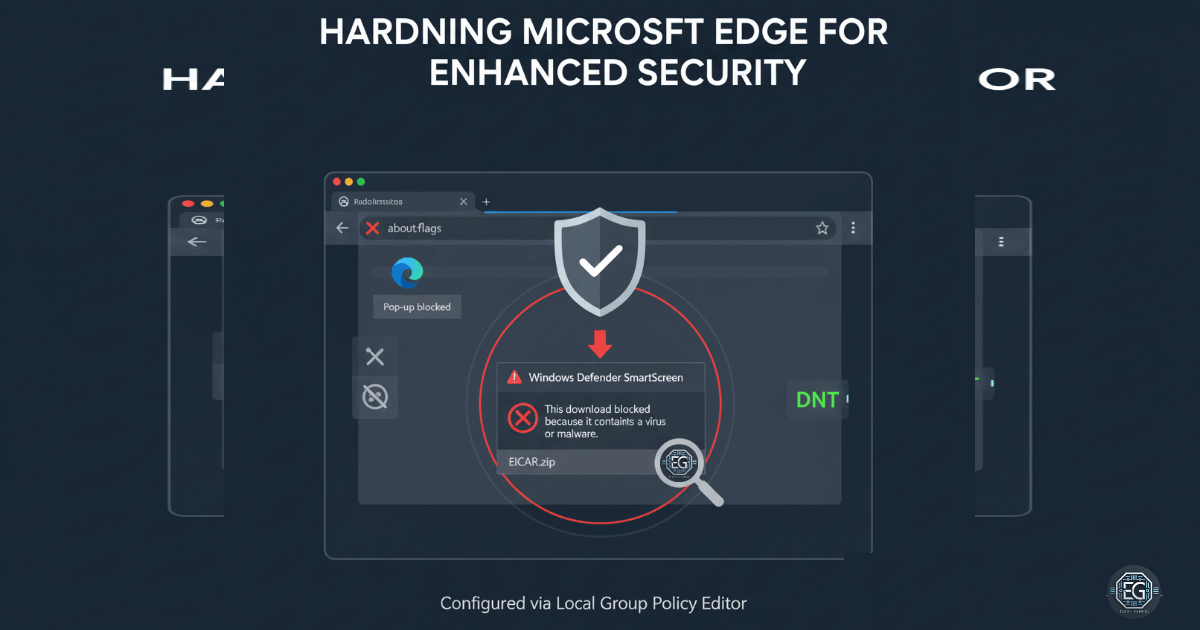
about:flagspage to prevent users from enabling experimental or insecure browser features. -
Active Defense Enforcement: Enabled Windows Defender SmartScreen and configured it to “Block” access to dangerous websites and prevent users from bypassing warnings when downloading suspicious files.
-
Policy Refresh: Applied configurations using
gpupdate /forceto ensure immediate compliance of the browser environment.
Root Cause: Default browser configurations prioritize user convenience and legacy compatibility, which creates an expanded attack surface for phishing and malware delivery.
1.3 Resolution and Validation
The browser environment was successfully stabilized under the new security constraints. Validation focused on the browser’s ability to identify and intercept malicious activity.
| Parameter | Configuration Value |
|---|---|
| Management Tool | gpedit.msc |
| SmartScreen Status | Enabled (Forced) |
| Bypass Logic | Disabled (Users cannot override blocks) |
| Flash/Dev Tools | Disabled |
Validation Steps
-
GPO Verification: Confirmed via Edge settings that restricted features (like Password Manager) were greyed out and labeled as “Managed by your organization.”
-
SmartScreen Functional Test: Accessed the Windows Defender SmartScreen settings within Edge to verify the policy was active and non-configurable by the local user.
-
Malware Interception Test: Attempted to download a known malicious test file; the browser successfully blocked the download and prevented the user from bypassing the warning, confirming the “Prevent Bypassing” policy was functional.
2.0: CONCLUSION
2.1 Key Takeaways
-
Proactive Defense: Enforcing SmartScreen via GPO moves the browser from a passive viewer to an active security sensor, blocking threats before they reach the local file system.
-
Configuration Integrity: By disabling
about:flagsand Developer Tools, the system ensures that the security posture cannot be easily subverted by local users or malicious scripts. -
Centralized Control: Although implemented via Local GPO, these settings demonstrate the granular control available for securing web traffic across an enterprise.
2.2 Security Implications & Recommendations
Risk: Web-Based Malware Delivery Phishing and drive-by downloads can bypass traditional perimeter defenses by targeting the user’s browser session.
Mitigation: Maintain Windows Defender SmartScreen in an enabled state and strictly prohibit users from bypassing warnings to ensure consistent protection.
Risk: Credential Theft via Browser Storage Native browser password managers often lack the robust encryption and auditing required for professional environments.
Mitigation: Disabling the native browser Password Manager forces the use of enterprise-grade vaulting solutions, providing better encryption and centralized auditing of credential access.