
0.0 Executive Summary
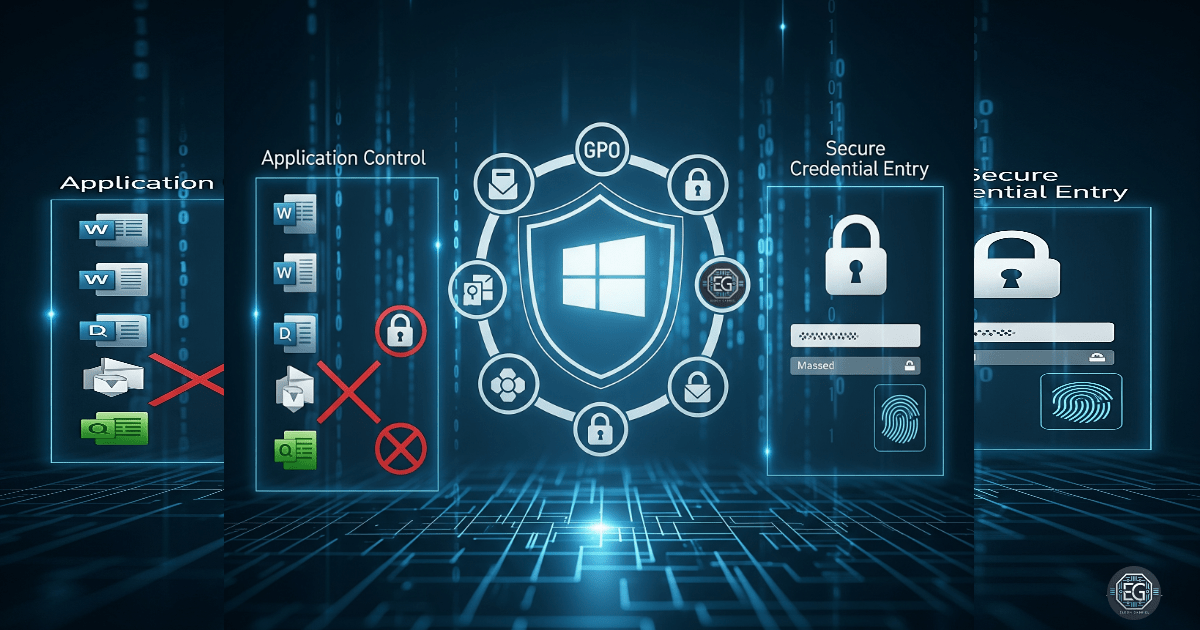
This report explains how logon security was improved on a Windows 10 workstation.
The main goal was to reduce the risk of credential theft from threats like keyloggers. This was done by using Local Group Policy to apply stronger security settings.
The final result improved system security by enforcing safer logon behavior. This includes using Secure Desktop prompts and disabling features that expose passwords or allow automatic logins.
1.0 Hardening Credential Entry Using Group Policy
1.1 Project Description
The goal of this task was to make the credential entry process more secure.
This was done using Local Group Policy to control how users log in and enter credentials.
The main actions included:
- Forcing the use of Secure Desktop for login and elevation prompts
- Disabling automatic logon
- Preventing password reveal features
- Ensuring credential entry happens through a trusted system path
These controls help protect against malware that tries to capture passwords or imitate login screens.
1.2 Technical Task / Troubleshooting Process
The process started by reviewing how the system handled logon and identifying weak points in the default setup.
Key Actions & Observations
- Reviewed default logon behavior and identified risks in credential handling
- Opened Local Group Policy Editor (gpedit.msc)
- Navigated to:
Computer Configuration → Windows Settings → Security Settings → Local Policies → Security Options - Applied the following controls:
- Enabled Secure Desktop for User Account Control (UAC) prompts
- Disabled automatic logon
- Disabled password reveal features
- Verified related components:
- User Account Control (UAC)
- Windows logon process (winlogon.exe)
- Documented all settings for repeatable deployment
Root Cause:
Default Windows settings focus on usability. This can allow unsafe behaviors like password exposure or easier spoofing of login prompts. The issue was addressed by enforcing stricter Group Policy settings that isolate credential entry from normal user activity.
1.3 Resolution and Validation
The configuration was applied and tested to confirm it worked as expected.
| Parameter | Configuration Value |
|---|---|
| Management Tool | gpedit.msc |
| Control State | Enforced |
| Security Mode | Secure Desktop / Trusted Path |
| Scope | System-wide logon and UAC |
Validation Steps
-
Performed an action that required administrator permission
-
Verified that the Secure Desktop appeared and dimmed the screen
-
Confirmed that the credential prompt was isolated from normal applications
-
Tested system behavior to ensure applications still functioned normally
-
Confirmed that users could still log in without issues
2.0 CONCLUSION
2.1 Key Takeaways
- Default system settings may not provide strong protection for credentials
- Group Policy can enforce consistent security controls across a system
- Secure Desktop helps isolate sensitive login prompts from user activity
- Testing is important to confirm that security changes work as expected
2.2 Security Implications and Recommendations
Risk: Credential Theft via Keyloggers
Attackers can use malicious software to capture passwords as they are typed.
Mitigation:
Enable Secure Desktop and disable password reveal features using Group Policy.
Risk: Unauthorized Access and Lateral Movement
Stolen credentials can allow attackers to access other systems in the network.
Mitigation:
Disable automatic logon and enforce trusted credential entry paths.
Best Practices
- Apply least privilege principles to all user accounts
- Use Group Policy to enforce consistent security settings
- Regularly review and validate configurations
- Maintain documentation for audits and incident response
Framework Alignment
- Aligns with NIST 800-53 access control and system hardening controls
- Supports ISO 27001 principles for secure authentication
- Reinforces confidentiality and integrity during the login process