
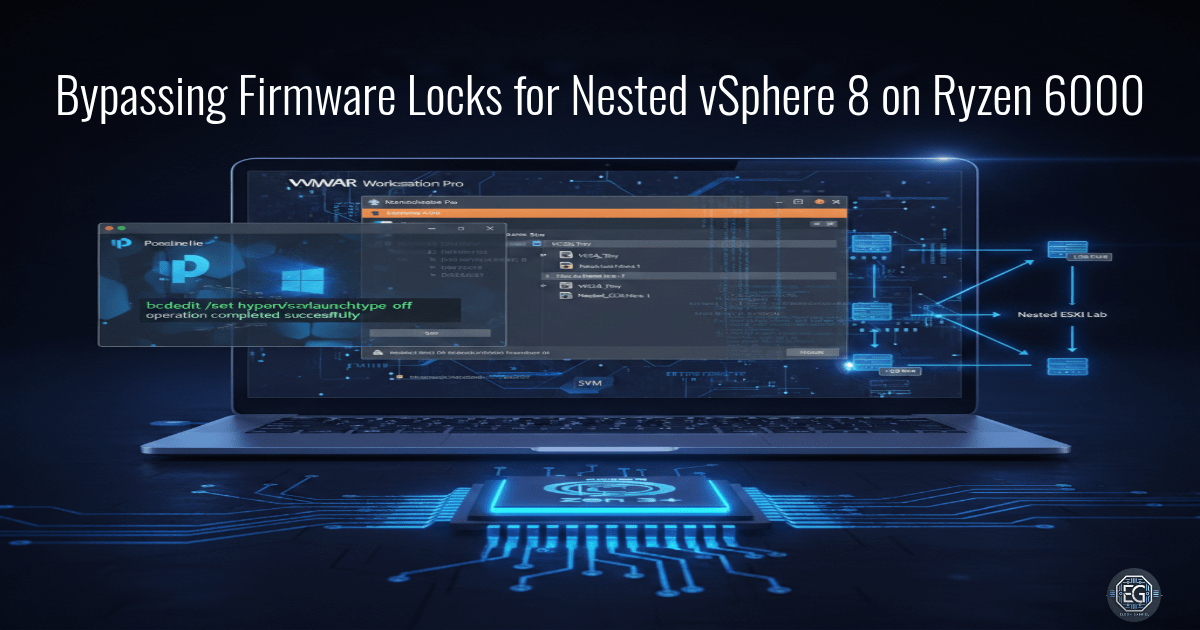

The Challenge: Restricted Hardware
Modern AMD Ryzen 6000 laptops often ship with firmware that hides virtualization features from hypervisors. Although the CPU supports AMD-V (SVM), the system may not expose it properly. When this is combined with Windows 11 Virtualization-Based Security (VBS), running a nested ESXi 8.0U3e lab becomes very difficult.
Key Technical Hurdles
- Hidden BIOS Settings: Standard F2 BIOS menus often hide SVM and SMM options on consumer laptops, such as the Acer Nitro V15.
- Windows Hypervisor Conflict: Windows VBS loads its own hypervisor. This prevents VMware Workstation from using AMD-V directly.
- Driver Misalignment: Default Windows drivers may not properly coordinate the AMD Platform Management Framework (PMF), which can cause unstable nested virtualization.
The Engineering Solution
By using a hidden UEFI key sequence (Fn + Tab) and disabling Credential Guard with the DG Readiness Tool, access to AMD-V was restored for VMware Workstation Pro 17.6. This enabled nested virtualization to function correctly.
Validation Logic: Success was confirmed when
systeminfo.exeshowed “Virtualization Enabled in Firmware: Yes” and the output did not show “A hypervisor has been detected.” This confirmed that Windows no longer blocks VMware from accessing hardware virtualization.
Full Technical Guide (PDF)
The complete end-to-end procedure is documented in the full report. It includes:
- Firmware configuration steps
- OS-level changes
- Recovery procedures (CMOS/NVRAM Reset)
- Post-lab security restoration
Technical Skills Demonstrated
- Hardware: UEFI configuration and SMM security changes.
- Operating System: Windows Boot Configuration Data (BCD) modification.
- Hypervisor: Nested ESXi configuration (vSphere 8.x).
- Capacity Planning: Designing a 32GB RAM allocation model to support stable VCSA deployment.